Novuna Finance Calculator JS Demo v1.1
Introduction
The finance calculator can be inserted into any page. The calculation is performed in the browser. The Services information is stored in a configuration.json file alongside the calculator.
We will look at how to download, configure and add the finance calculator to different platforms.
Essentials
Download script
The .zip file below contains thepbf-finance-calculator.js and the
pbf-finance-calculator.csspbf-finance-calculator.zip
Extract the pbf-finance-calculator.js and the pbf-finance-calculator.css files.
Dependencies
The calculator uses theDecimal.js library.
The retailer can include this library from a CDN using the following code: <script
src="https://cdn.jsdelivr.net/npm/decimal.js/decimal.min.js"></script>
Configuration
A configuration file must be provided to the retailer. It should be named
[retailer-trading-name]-pbf-calculator-config.json.
The retailer should upload this .json file to the same directory as the javascript file.
Create config file
You can generate a file here, you will be presented with a tool to create and download the config file.
Sample config file
Alternatively, here is a sample configuration file (pbf-calculator-config.json)pbf-calculator-config.json
{
"retailer": {
"FCARetailerName": "FCA Retailer Name",
"TradingName": "Company Name"
},
"limits": { This object defines master limits which will always be applied
"minLoan":500,
"maxLoan":25000,
"minDeposit":10,
"maxDeposit":50
},
"services": { This object defines each available service
"Interest Bearing":{
"apr": 9.9, APR is required per service
"terms":{ Terms are required per service
"6":{},
"12":{},
"24":{
"minLoan":1000 Loan/Deposit limits can optionally be set per term
},
"32":{
"minLoan":1500
}
},
"minDeposit": 15, Loan/Deposit limits can optionally be set per service
"maxDeposit": 25
},
"Interest Free":{
"apr": "0",
"terms":{
"6":{},
"12":{
"minLoan":900
},
"24":{
"minLoan":2000,
"minDeposit":20
}
},
"minLoan": 750
},
"Countdown Interest Bearing":{
"apr": 19.9,
"terms": ["12", "24", "36", "48"], If there are no term-specific limits, the terms can be defined as a simple array
"deferralterms": ["6", "10", "12", "24"] Deferral Terms are defined the same way
},
"CDIB":{
"apr": 29.8,
"terms": ["12", "24", "36", "48"],
"deferralterms": ["6", "10", "12", "24"]
}
}
}Note:
- When adding a minimum loan to terms, please ensure that the limits are within the parent service's limits.
Usage
Including script and styles
The retailer should include the .js and .css files within the <head> of the page like this:
<script
                            src="https://cdn.jsdelivr.net/npm/decimal.js/decimal.min.js"></script>
<script src="dist/js/pbf-calculator.js"></script>
<link rel="stylesheet" href="dist/css/pbf-calculator.css">
Setup
The calculator is then loaded using the javascript funtion financeCalculator();
-
The following options are required:
targetThe target element to append the calculator toconfigThe path to the.config.jsonfilerep_exampleValues for the Representative Example
This finance calculator could be loaded using the following snippet of code:
<script>
    financeCalculator({
        target: "div#pbf_calculator_container",
        config: "dist/js/your_trading_name-pbf-calculator.config.json",
        rep_example:{
            cash_price: 8000,
            deposit: 750,
            loan_amount: 5000,
            apr: 9.9,
            interest_rate: 10,
            term: 12,
            instalment_amount: 400,
            total_term: 10,
            credit_charge: 500,
            total_amount_payable: 200
        }
    });
</script>
Options
There are various options for using the calculator. In addition to what has already been covered, we can control:
- The loan amount, if this is on the product or cart page for example
- The colours used on the calculator
- The wording used in the input labels
- The CSS classes applied to various elements in the calculator
| Option | Type | Description |
| target* | string/CSS Selector | The element to append the calculator to. (eg. a blank div). An #id is preferred. This is required. |
| config* | string/relative path | Path to the calculator config file, relative to the domain root. (eg. "/dist/js/pbf-calculator.config.json"). This is required. |
| rep_example* | JSON/numbers | A list of values to be used for the representative example. All of these values are required. |
| loan_amount_target | string/CSS Selector | The element to read the loan amount from. If this field is not provided, then an input box will be displayed. |
| colours | JSON/Hex value | boolean | Only a primary colour is required. The darker shade is automatically calculated if
not defined. If false, then no colour CSS will be generated by this script. |
| labels | JSON/string | Override the labels displayed on the calculator |
| classes | JSON/CSS Class | boolean | Space-seprated list of CSS classes for various elements in the calculator. If false, then no styling classes will be applied. |
| finance_js_button | function |
Adding this parameter will display a PaybyFinance button which can be customised, for example: finance_js_button: function () { console.log('triggered'); }, |
| sliders | boolean | To show UI sliders or not |
You only need to include options that you wish to change from the default value.
The default
values are shown here for colours, labels, classes:
<script>
    financeCalculator({
        target: "div#pbf_calculator_container",
        config: "path/to/pbf-calculator.config.json",
        loan_amount_target: "span.price.price--withTax",
        rep_example: {
            cash_price: 2500,
            deposit: 250,
            loan_amount: 2250,
            apr: 9.9,
            interest_rate: 19.9,
            term: 12,
            instalment_amount: 197.27,
            total_term: 12,
            credit_charge: 117.24,
            total_amount_payable: 2617.24
        },
        colours: {
            primary: "#7D3CFF",
            darker: null
        },
        labels:{
            amount: "Enter the amount you would like to spend",
            deposit: "Enter the amount you would like to deposit",
            service: "Select a finance service",
            term: "Select a repayment term",
            results: "Finance Summary"
        },
        classes: {
            buttons: "pbf_button",
            button_wrapper: "pbf_button_wrapper",
            button_list: "pbf_button_list",
            inputs:  "pbf_input",
            input_wrapper: "pbf_input_wrapper",
            labels: "pbf_label",
            results_box: "pbf_results"
        }
    });
</script>
Guides
The calculator can be used with any ecommerce platform or CMS.


Shopify Installation Guide
- Uploading assets
- Creating a page template for the calculator
- Including the assets in your theme
- Creating a page
1. Uploading assets
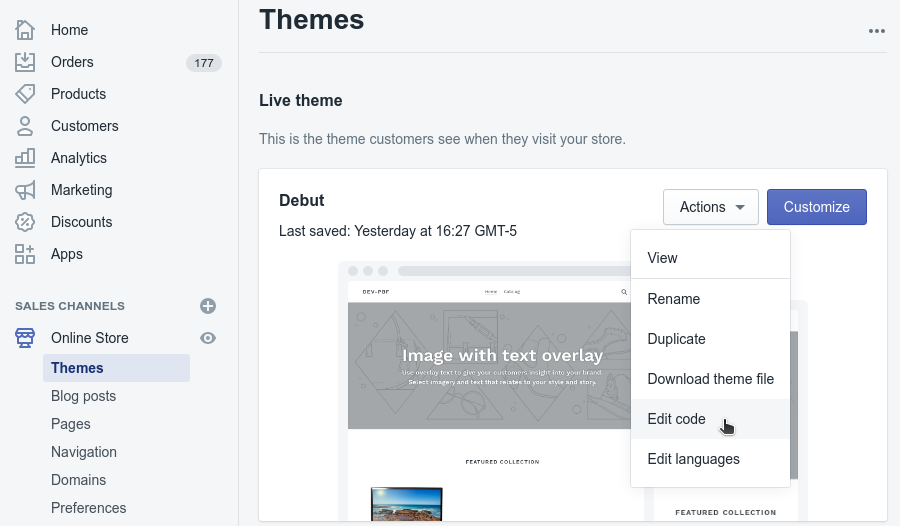
From the Shopify Admin, select Themes > Actions > Edit Code
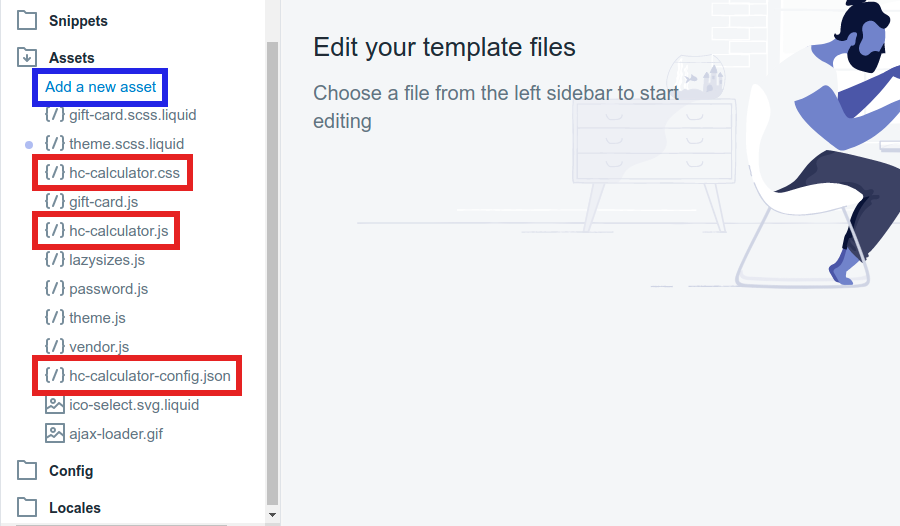
Under Assets, click 'Add a new asset', and upload your
pbf-calculator.css, pbf-calculator.js, and
pbf-calculator-config.json
files
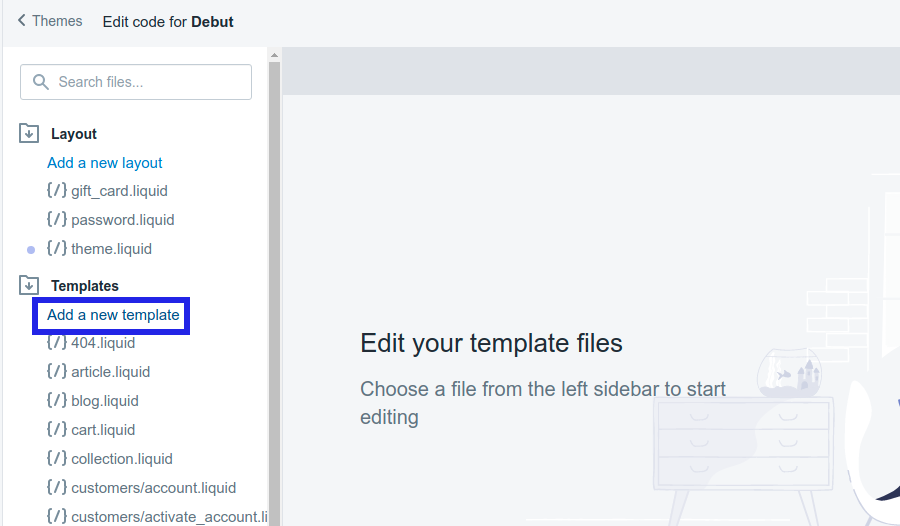
2. Creating a page template for the calculator
Under Templates, click 'Add a new template'.
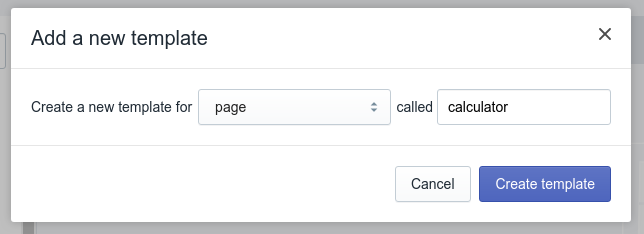
Create a new template for 'page' called 'calculator'
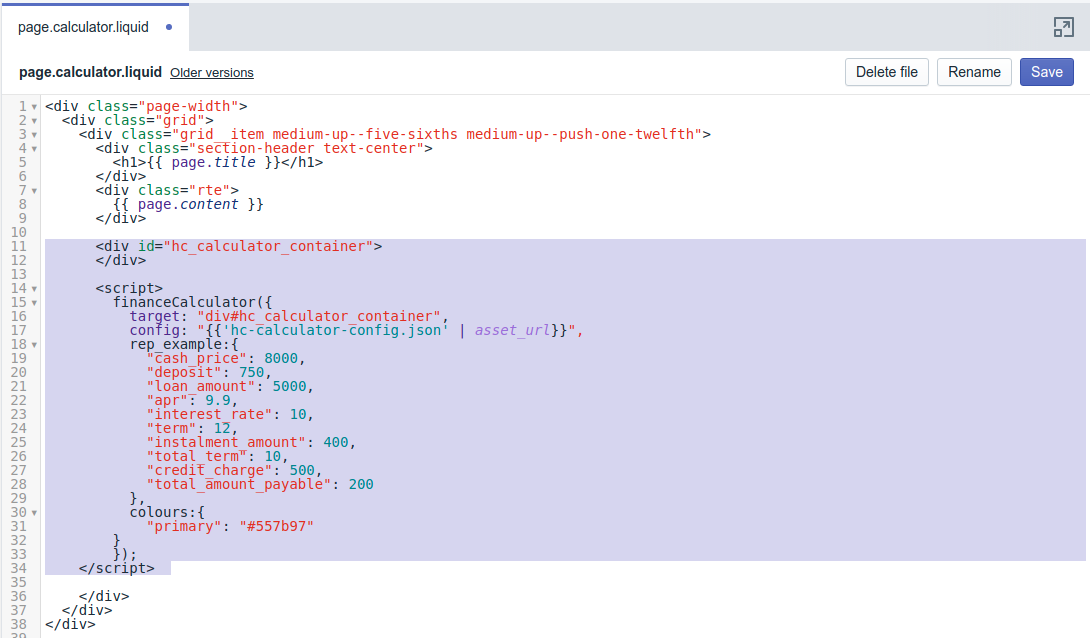
Open your newly created page.calculator.liquid.
Create an empty div with
an ID
and insert the initialization script for the calculator.
Here you can control colours, classes and label options. Please refer to the Options
section
above. Shopify Liquid code is used to get the path to the config.json
  <div id="pbf_calculator_container"></div>

  <script>
    financeCalculator({
        target: "div#pbf_calculator_container",
        config: "{{'pbf-calculator-config.json' | asset_url}}",
        rep_example:{
            cash_price: 8000,
            deposit: 750,
            loan_amount: 5000,
            apr: 9.9,
            interest_rate: 10,
            term: 12,
            instalment_amount: 400,
            total_term: 10,
            credit_charge: 500,
            total_amount_payable: 200
        }
    });
</script>
3. Including the assets in your theme
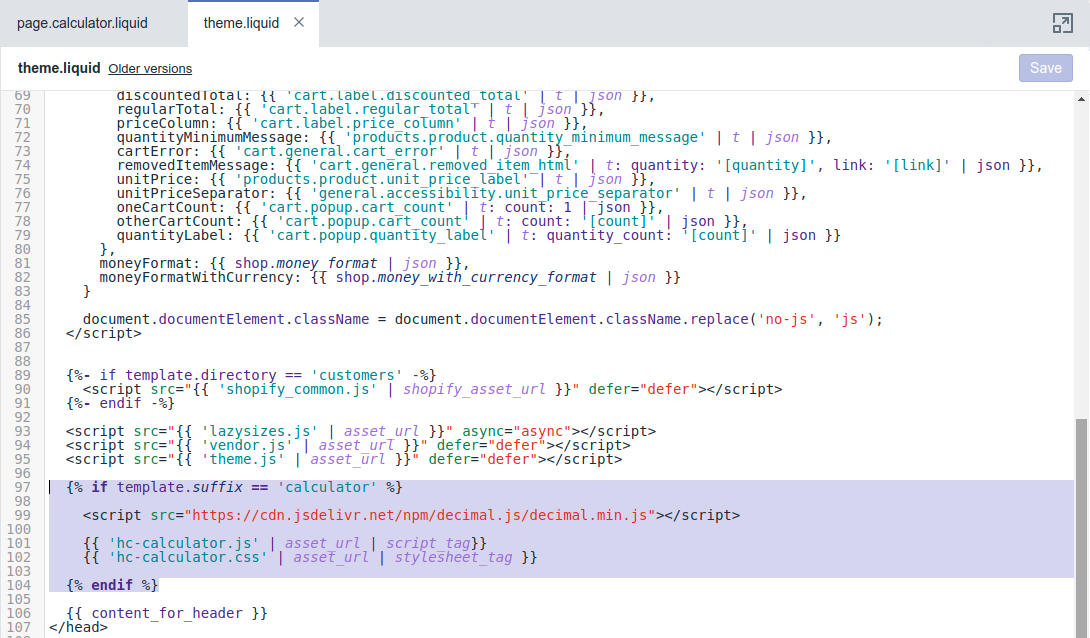
Under Layout, select theme.liquid. At the end of the head
section,
insert the script tags and stylesheet link. Shopify Liquid code is used to create the
asset
tags, and to check if we are currently on the calculator page.
{% if template.suffix == 'calculator' %}

    <script src="https://cdn.jsdelivr.net/npm/decimal.js/decimal.min.js"></script>

    {{ 'pbf-calculator.js' | asset_url | script_tag}}
    {{ 'pbf-calculator.css' | asset_url | stylesheet_tag }}

{% endif %}
4. Creating a page
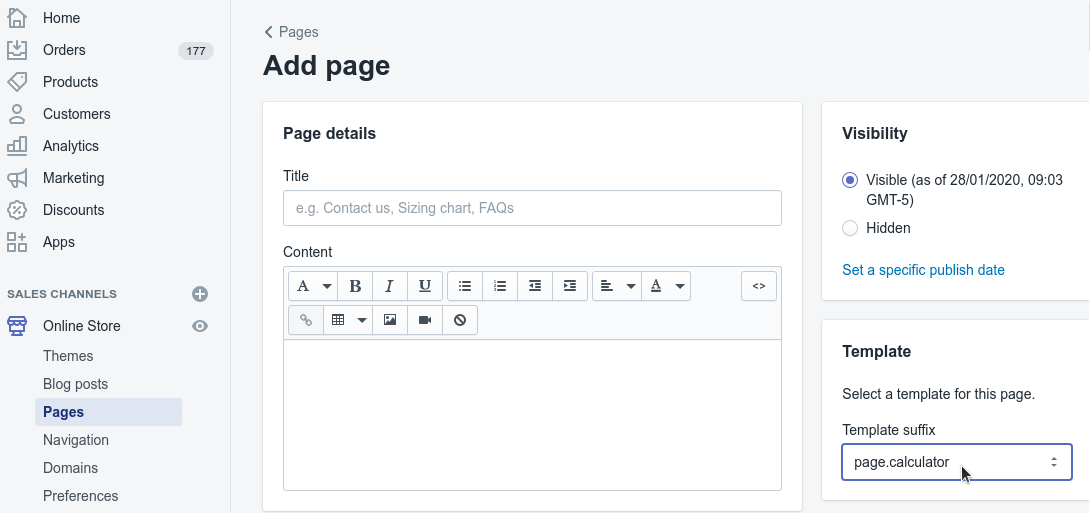
In the Shopify Admin, navigate to Online Store > Pages > Add page. Under
Template, select our newly created page.calculator
template. Give
your page a title and content and then save.
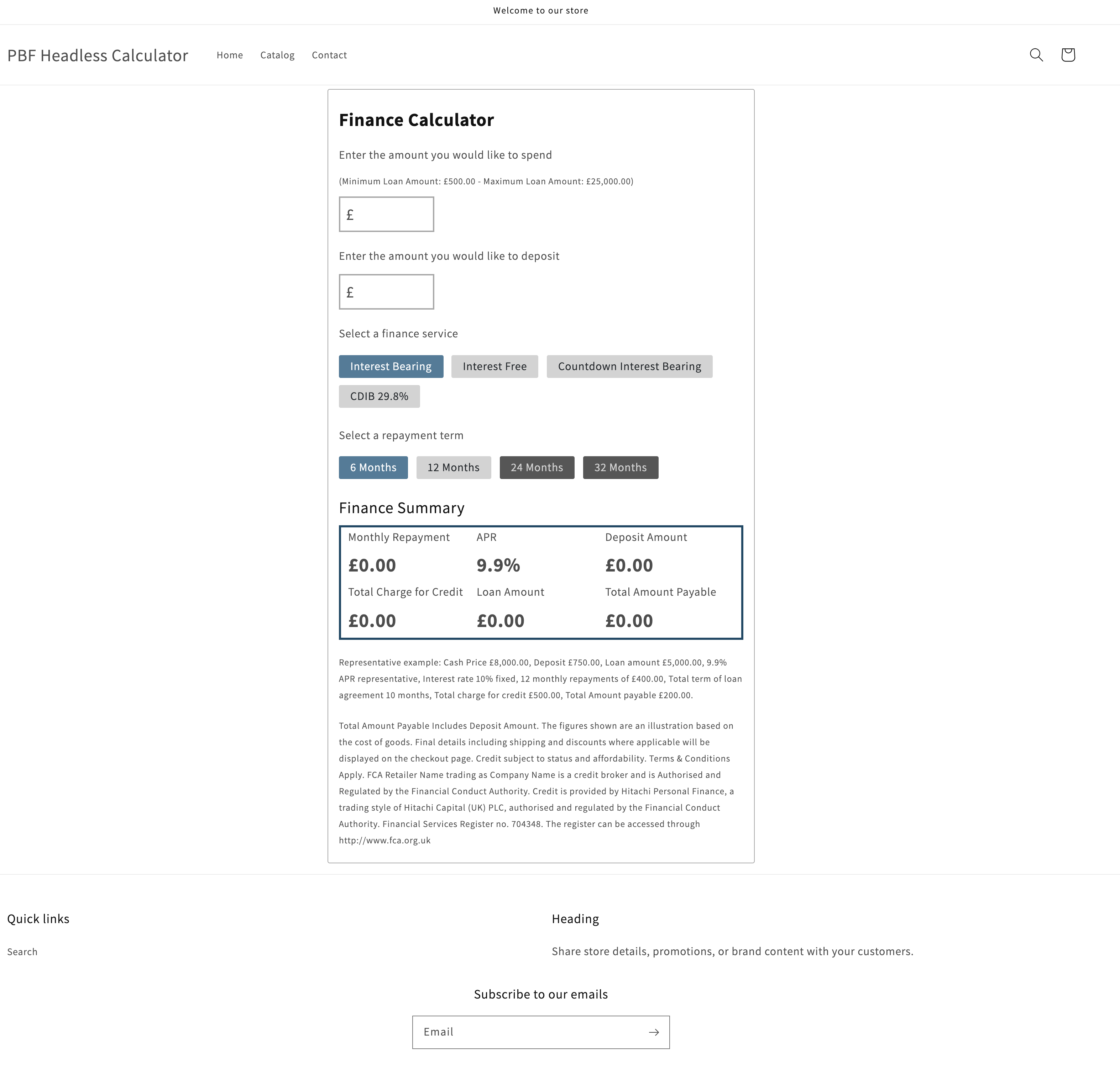
You can now view the calculator on the newly created page.
BigCommerce Installation Guide
- Add scripts and config to header
- Add PBF calculator to CMS page
- Add PBF calculator to product page
- Add PBF calculator to cart page
1. Add scripts and config to header
Add these files:
- assets/js/theme/finance-calculator/pbf-calculator.js
- assets/js/theme/finance-calculator/pbf-calculator-config.json
- assets/scss/theme/finance-calculator/pbf-calculator.css
Then rename the .css file to .scss
- assets/scss/theme/finance-calculator/pbf-calculator.scss
Edit this file: templates/layout/base.html, and add these lines in the <head> section:
<script src="https://cdn.jsdelivr.net/npm/decimal.js/decimal.min.js"></script>
<script src="{{cdn 'assets/js/theme/finance-calculator/pbf-calculator.js'}}"></script>
Edit this file: assets/scss/theme.scss, and add this line to the bottom of the file:
@import "../../assets/scss/pbf-calculator";2. Add PBF calculator to CMS page
Then place this snippet where you would like the calculator to appear:
<div id="pbf_calculator_container"> </div>
<script type="text/javascript">// <![CDATA[
financeCalculator({
        target: "div#pbf_calculator_container",
        config: "{{cdn '/assets/js/theme/finance-calculator/pbf-calculator-config.json'}}",
        rep_example:{
            cash_price: 8000,
            deposit: 750,
            loan_amount: 5000,
            apr: 9.9,
            interest_rate: 10,
            term: 12,
            instalment_amount: 400,
            total_term: 10,
            credit_charge: 500,
            total_amount_payable: 200
        }
    });
// ]]></script>
3. Add PBF calculator to product page
Edit this file: templates/components/products/product-view.html, and add this where you would like the calculator to appear:
<div id="pbf_calculator_container"> </div>
<script type="text/javascript">// <![CDATA[
financeCalculator({
        target: "div#pbf_calculator_container",
        config: "{{cdn '/assets/js/theme/finance-calculator/pbf-calculator-config.json'}}",
        loan_amount_target: "span.price.price--withTax",
        rep_example:{
            cash_price: 8000,
            deposit: 750,
            loan_amount: 5000,
            apr: 9.9,
            interest_rate: 10,
            term: 12,
            instalment_amount: 400,
            total_term: 10,
            credit_charge: 500,
            total_amount_payable: 200
        }
    });
// ]]></script>
4. Add PBF calculator to cart page
Edit this file: templates/pages/cart.html, and add this where you would like the calculator to appear:
<div id="pbf_calculator_container"> </div>
<script type="text/javascript">// <![CDATA[
financeCalculator({
        target: "div#pbf_calculator_container",
        config: "{{cdn '/assets/js/theme/finance-calculator/pbf-calculator-config.json'}}",
        loan_amount_target: ".cart-total-value.cart-total-grandTotal",
        rep_example:{
            cash_price: 8000,
            deposit: 750,
            loan_amount: 5000,
            apr: 9.9,
            interest_rate: 10,
            term: 12,
            instalment_amount: 400,
            total_term: 10,
            credit_charge: 500,
            total_amount_payable: 200
        }
    });
// ]]></script>
Proudly developed by Digital Boutique